On site
Workers
A phone-first app workers can use in seconds.
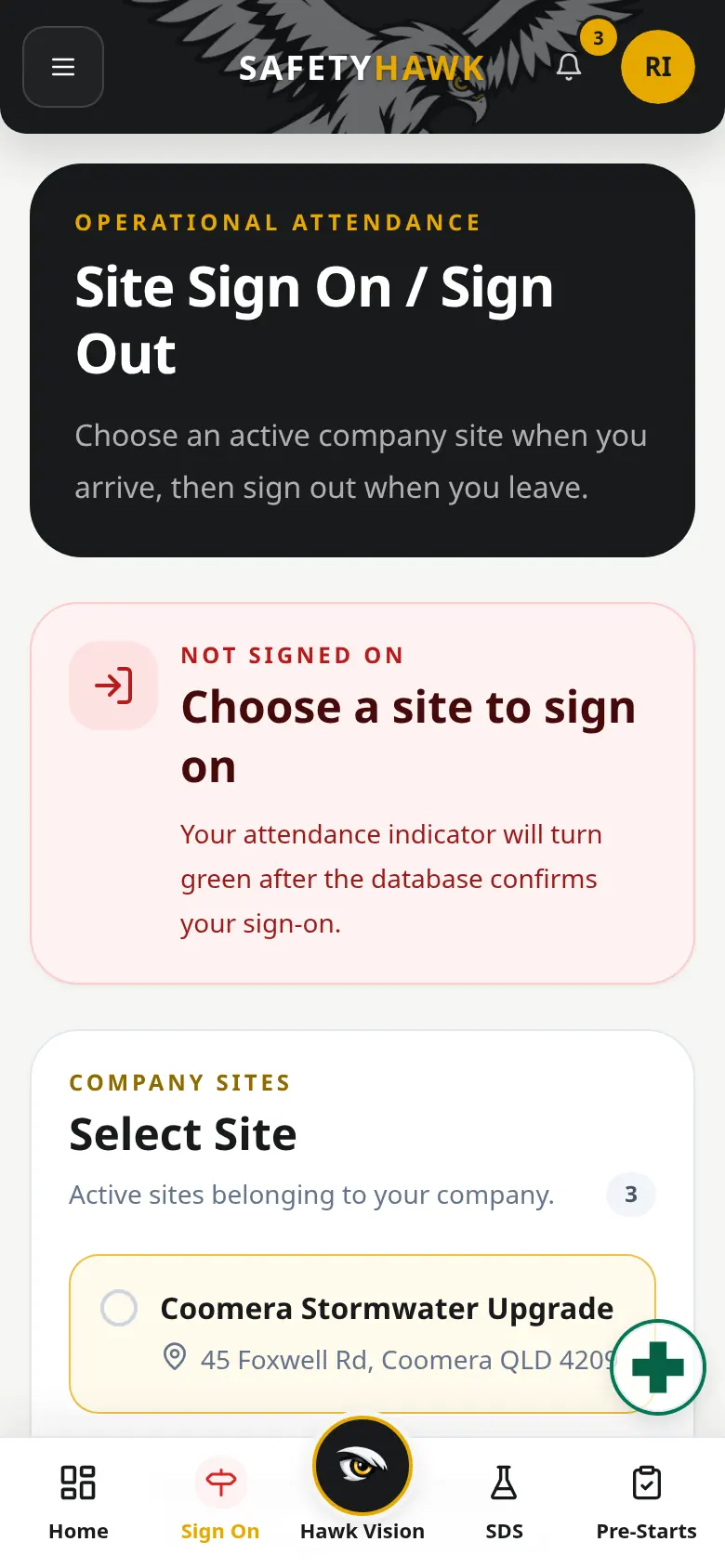
- Sign on to an assigned site
- Scan a hazard photo with Hawk Vision
- Complete a pre-start
- Sign a JSEA or SWMS
- Open emergency information after sign-on
- Keep licences on your profile
Features
Explore the tools your workers use on site and the records your supervisors and safety team manage afterwards. Each feature is designed to make everyday safety tasks easier to complete, review and follow up.
Who uses it
On site
A phone-first app workers can use in seconds.
In the office
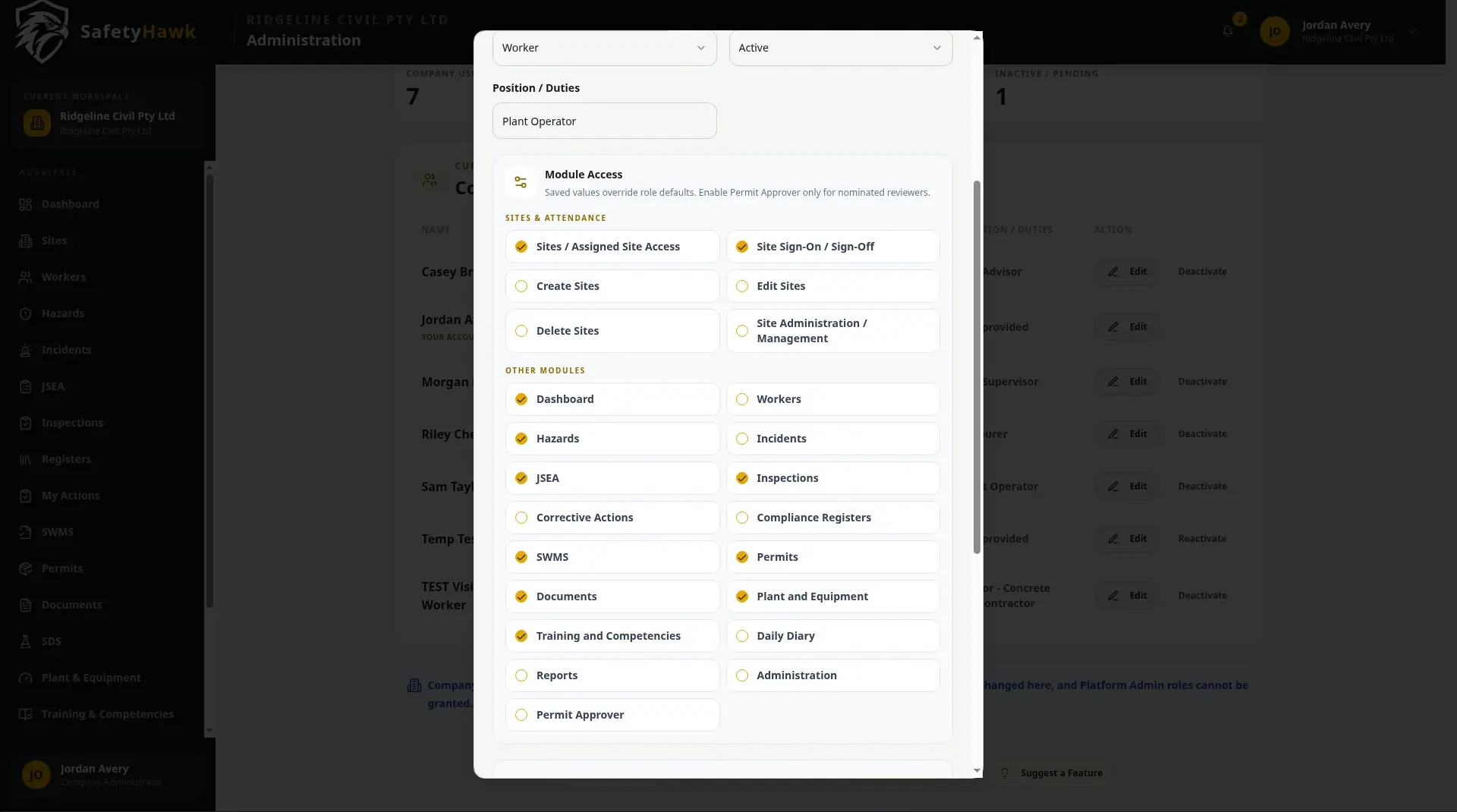
The full back end for the people who run the system.
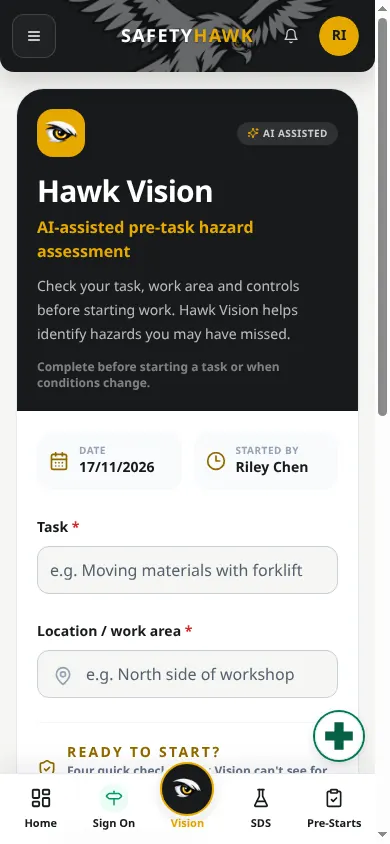
Hawk Vision uses photo analysis to help your team spot potential hazards before work begins. Review the suggested findings, correct anything the system gets wrong and save the assessment to the hazard register. The person completing the check stays responsible for deciding what controls are needed.
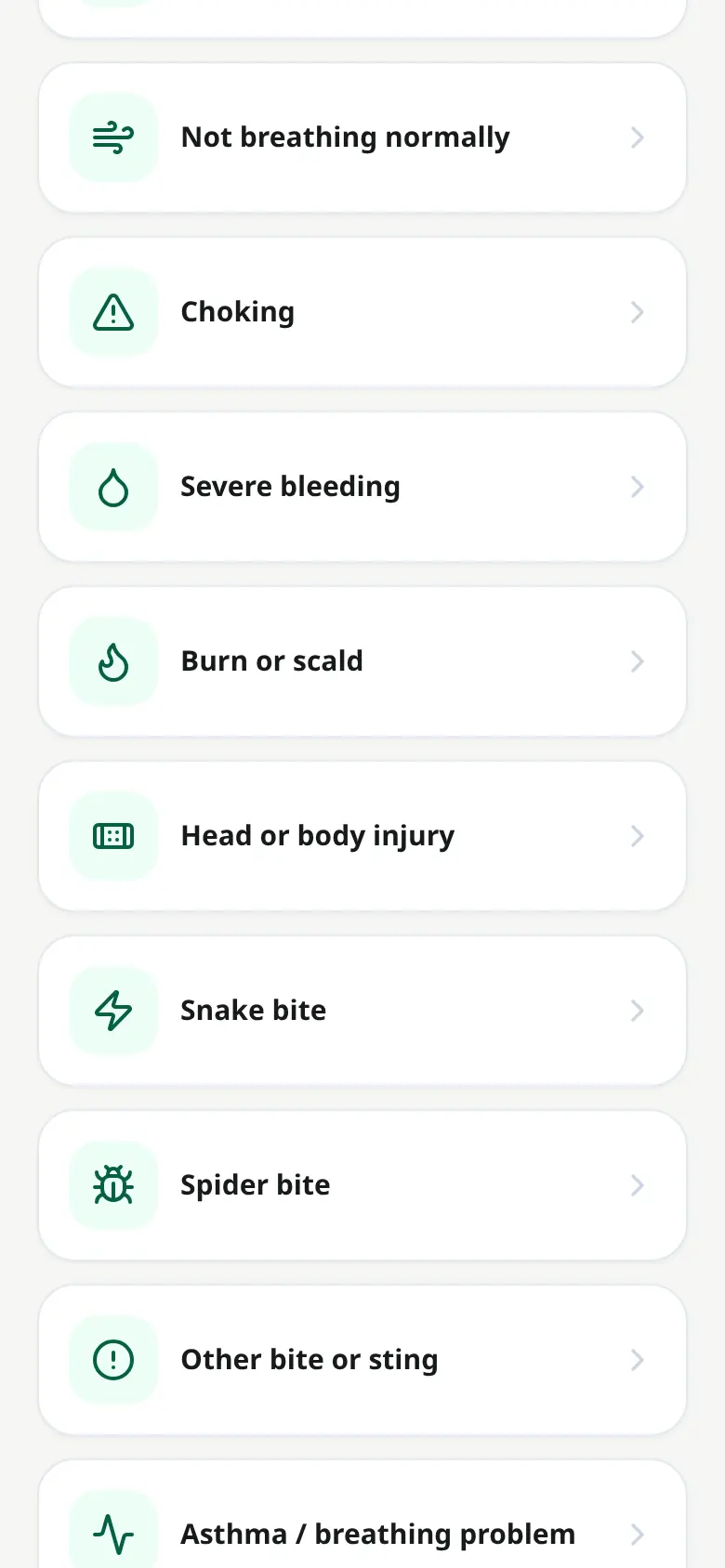
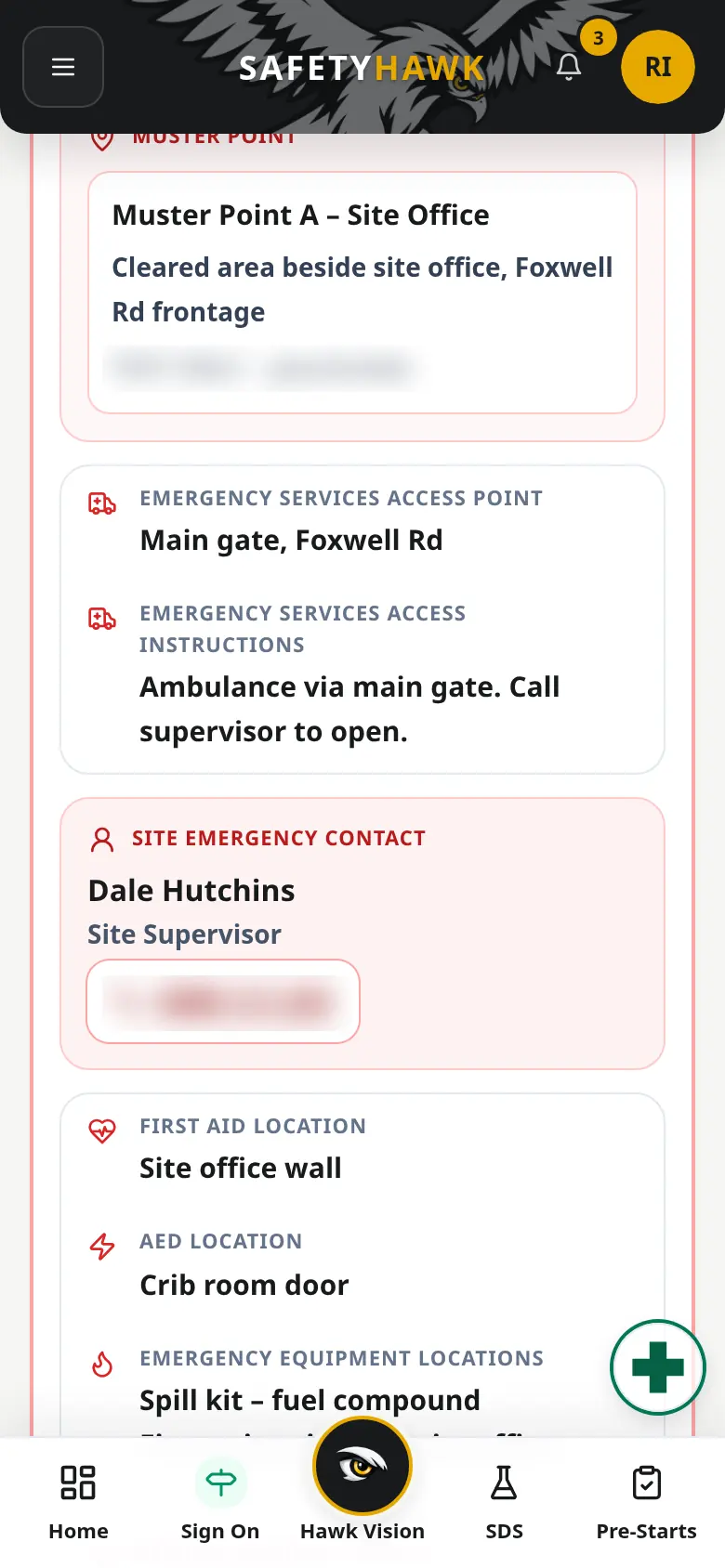
When something goes wrong, workers need information they can find quickly. SafetyHawk provides mobile access to first-aid guidance and site emergency details, while site sign-on helps supervisors see who may be on site during an emergency.
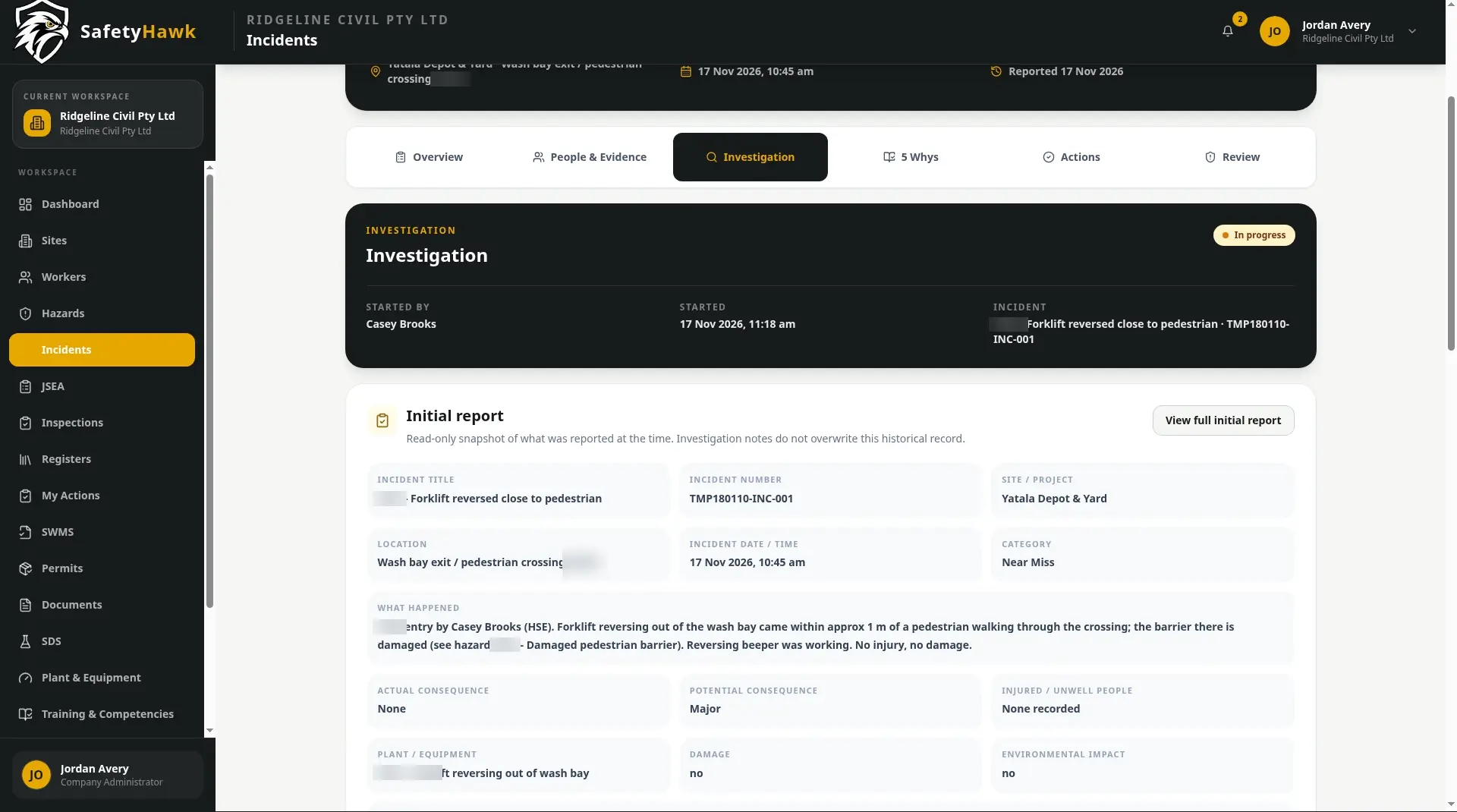
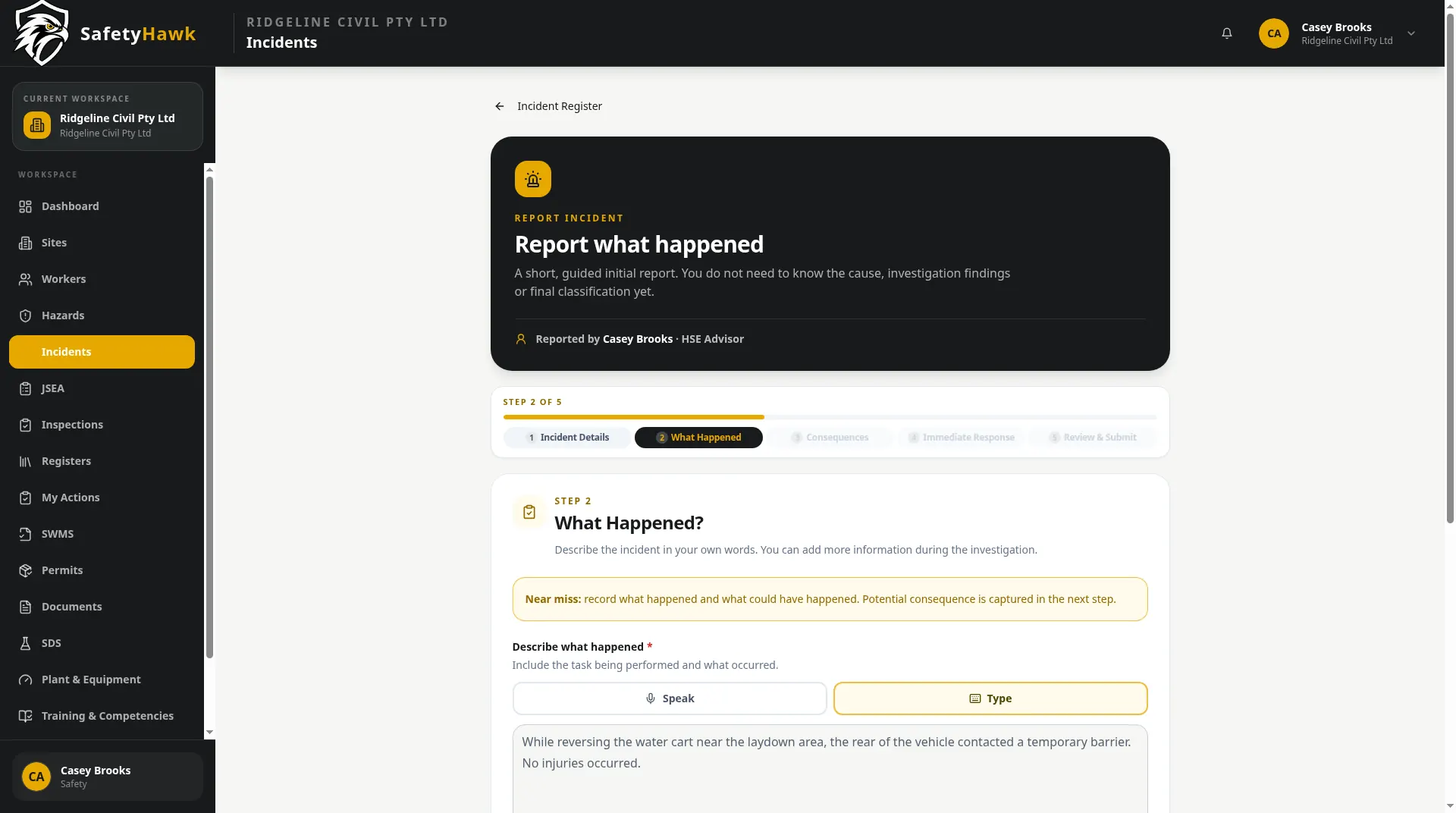
Capture incident details, immediate actions and supporting evidence in a consistent report. Safety personnel can work through the investigation, including a 5 Whys analysis where appropriate, so findings and follow-up actions remain connected to the original event.
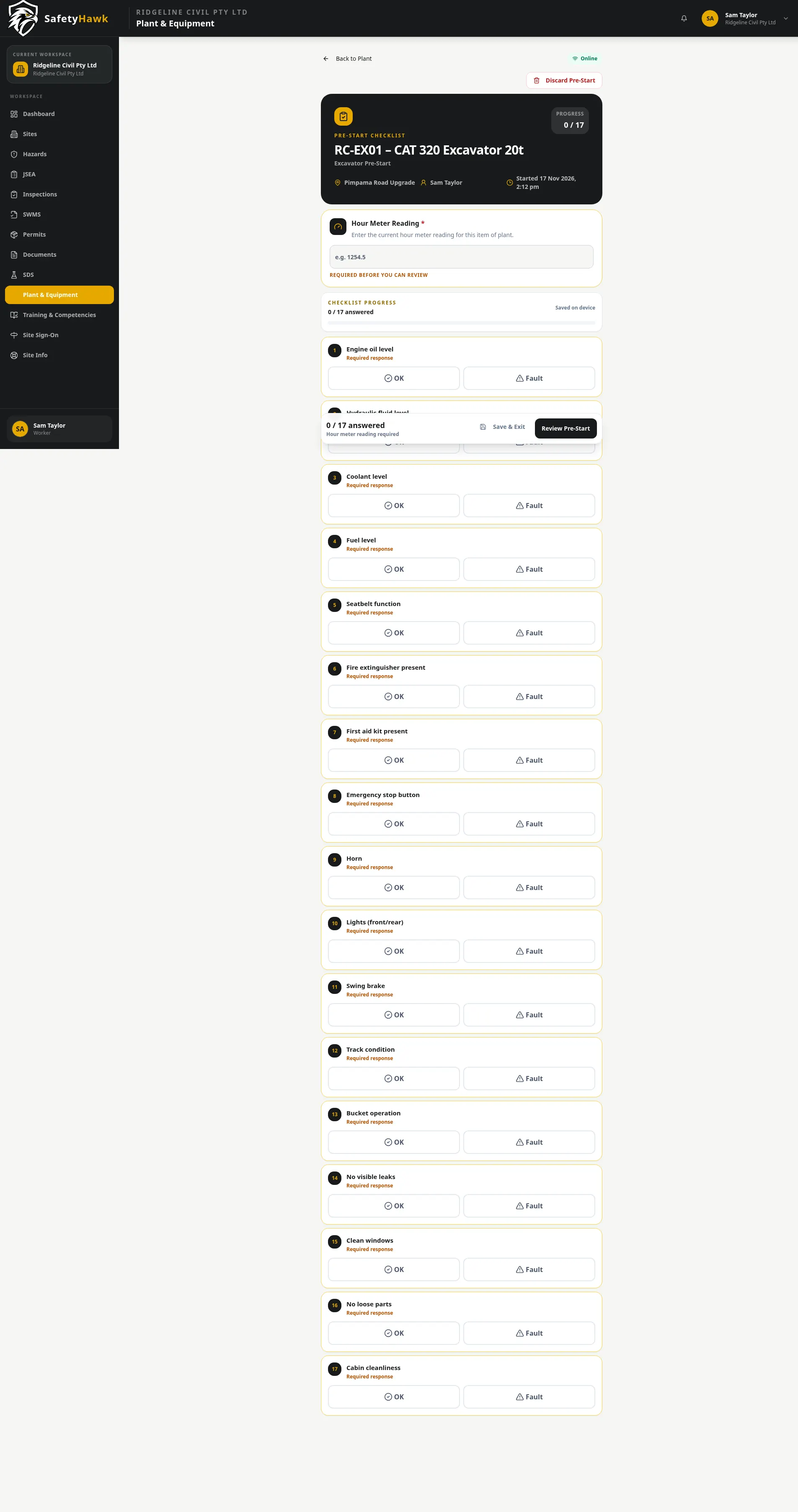
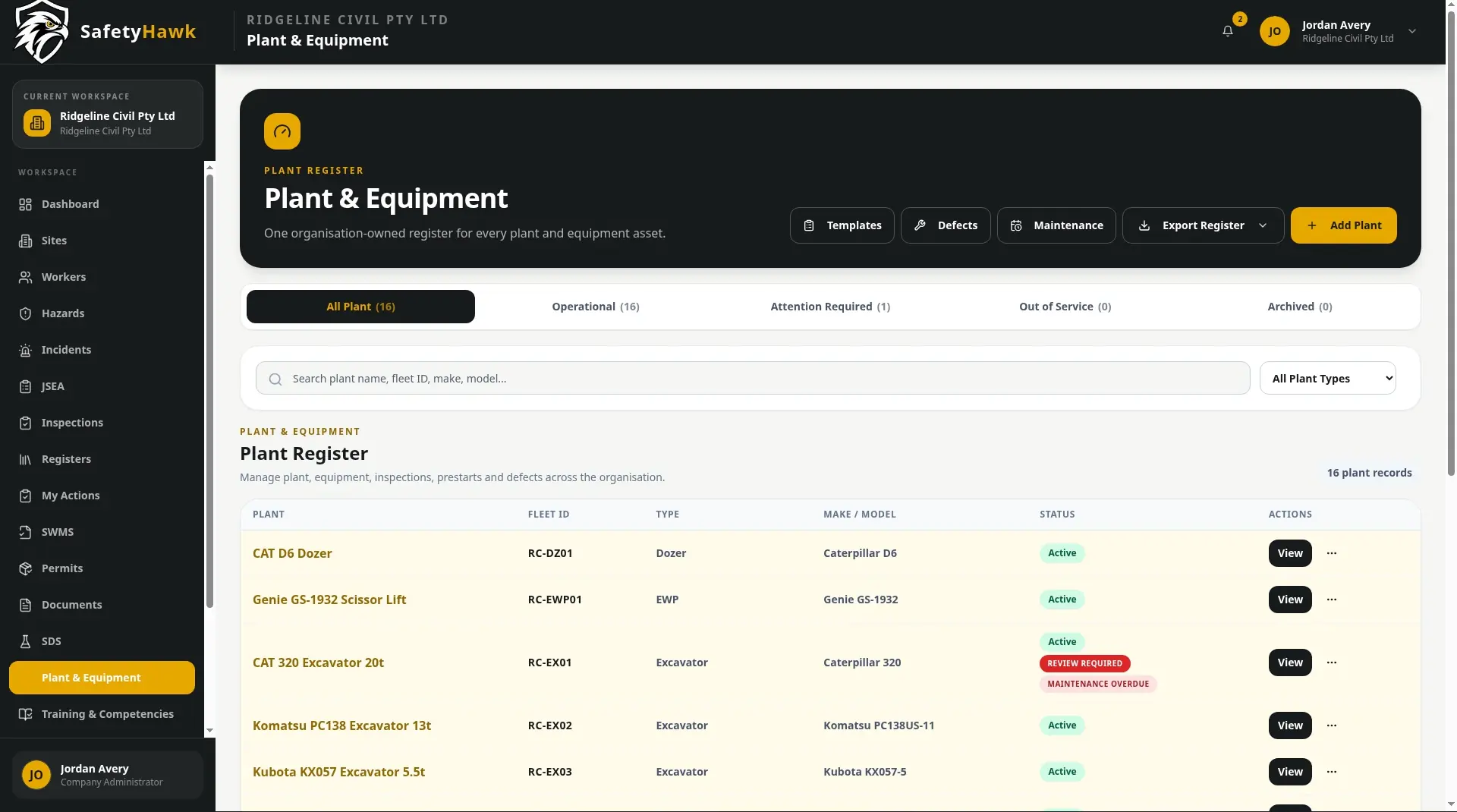
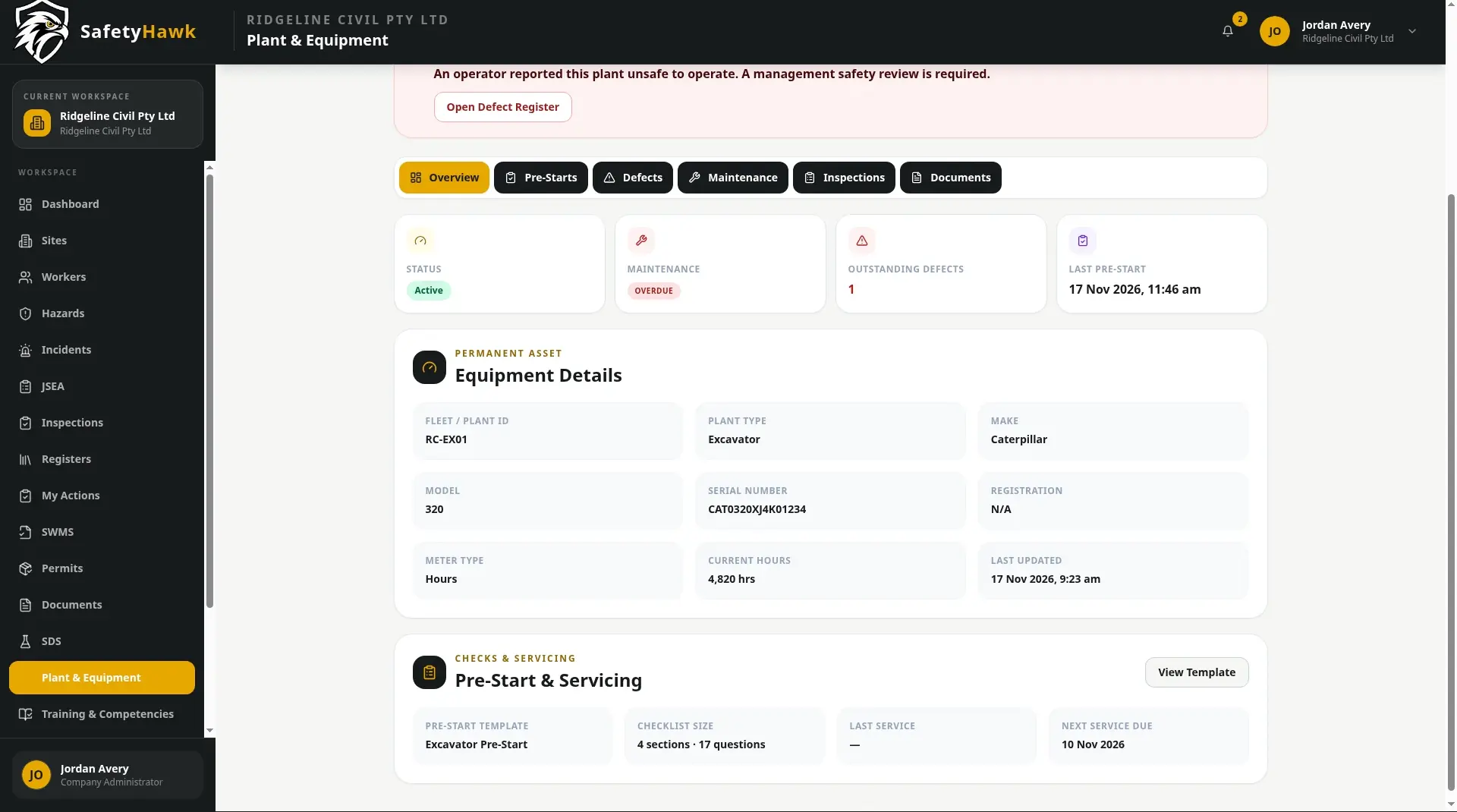
Give operators a straightforward way to complete plant and vehicle pre-starts before use. Checks are recorded against the equipment, faults can be identified as they arise and supervisors can review the condition of plant without chasing paper forms.
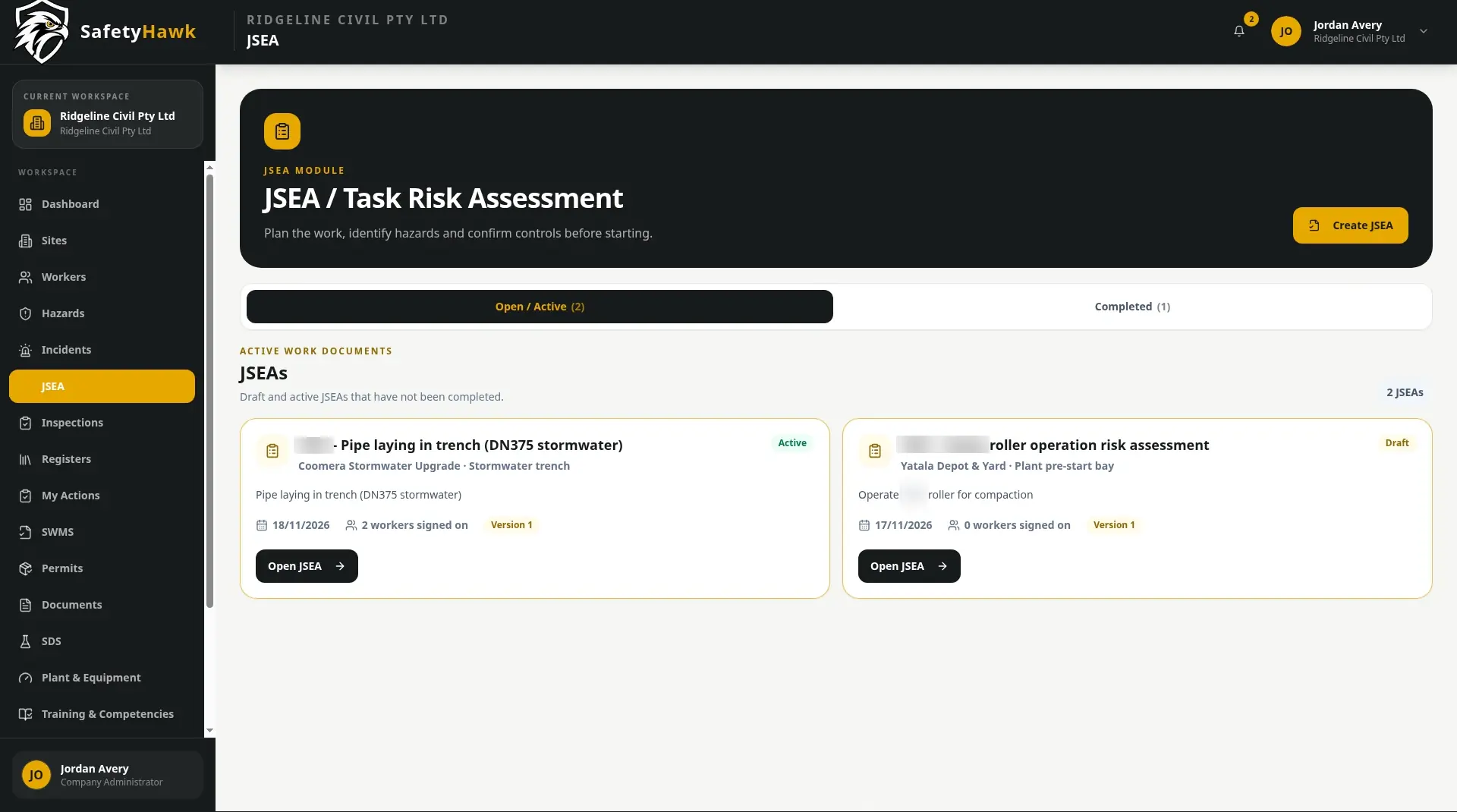
Prepare a JSEA for the work being undertaken, record the job steps and controls, and make it available for workers to review and sign. Digital sign-on and downloadable records help keep the task briefing together with the people who acknowledged it.
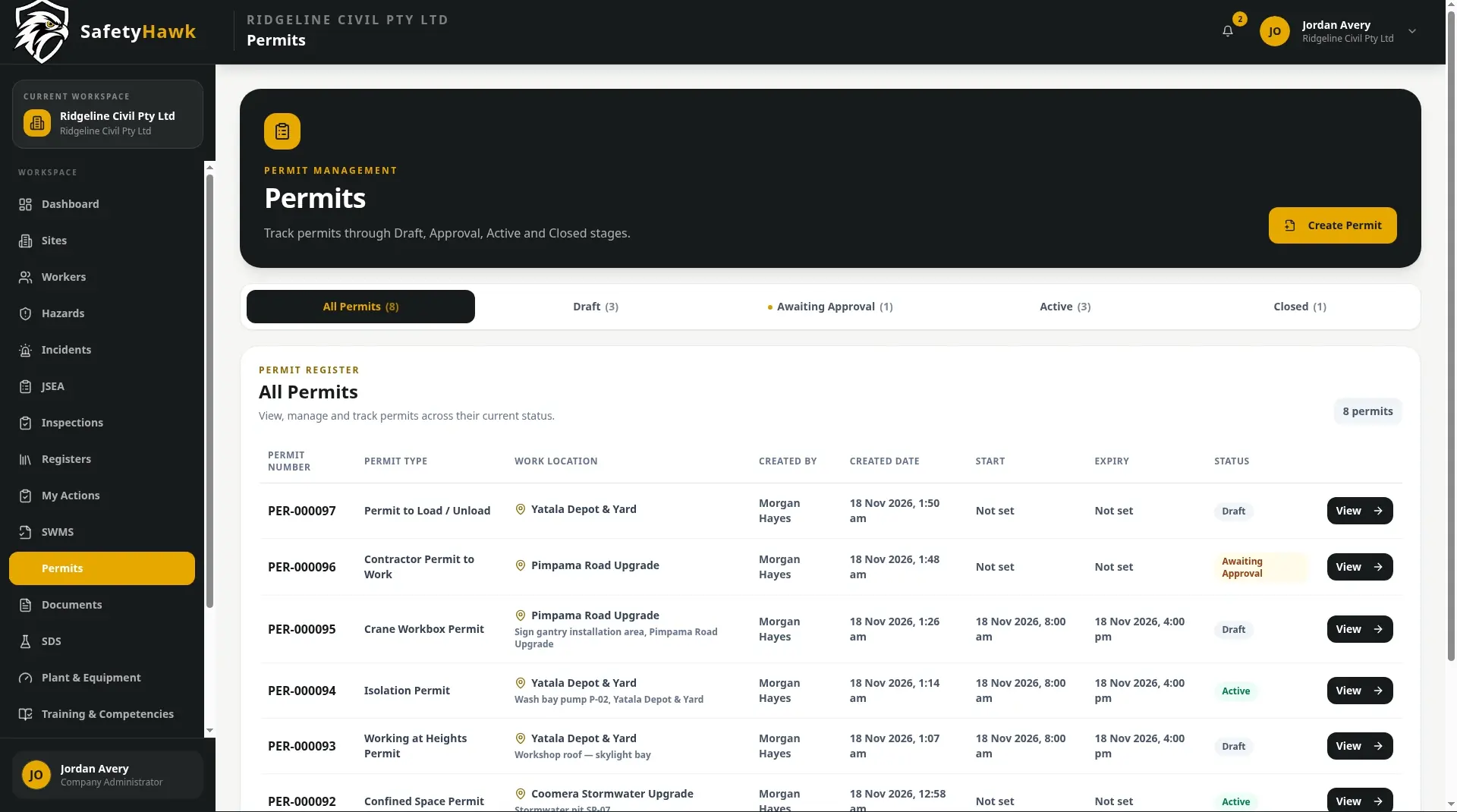
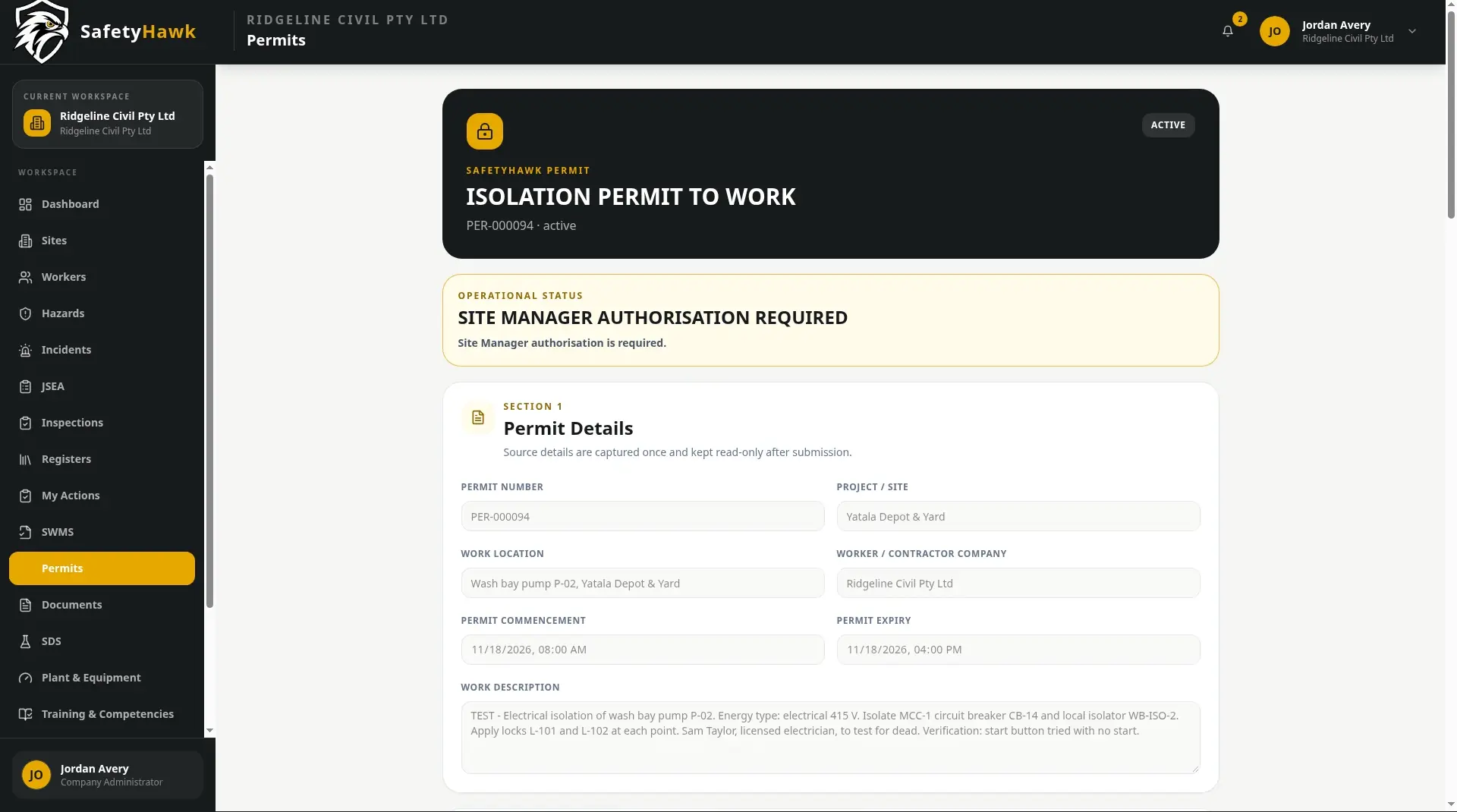
Manage permit requests and approvals in a consistent workflow rather than relying on loose forms or email chains. Workers can complete the required information, submit it for review and keep the permit record available for the work. Hot Works also includes post-work close-out checks.
Give workers access to the sites they are assigned to and a simple way to sign on and off. Site details, emergency contacts and muster information are kept together so the team can find important information when it is needed. Automatic sign-out can be configured where appropriate.
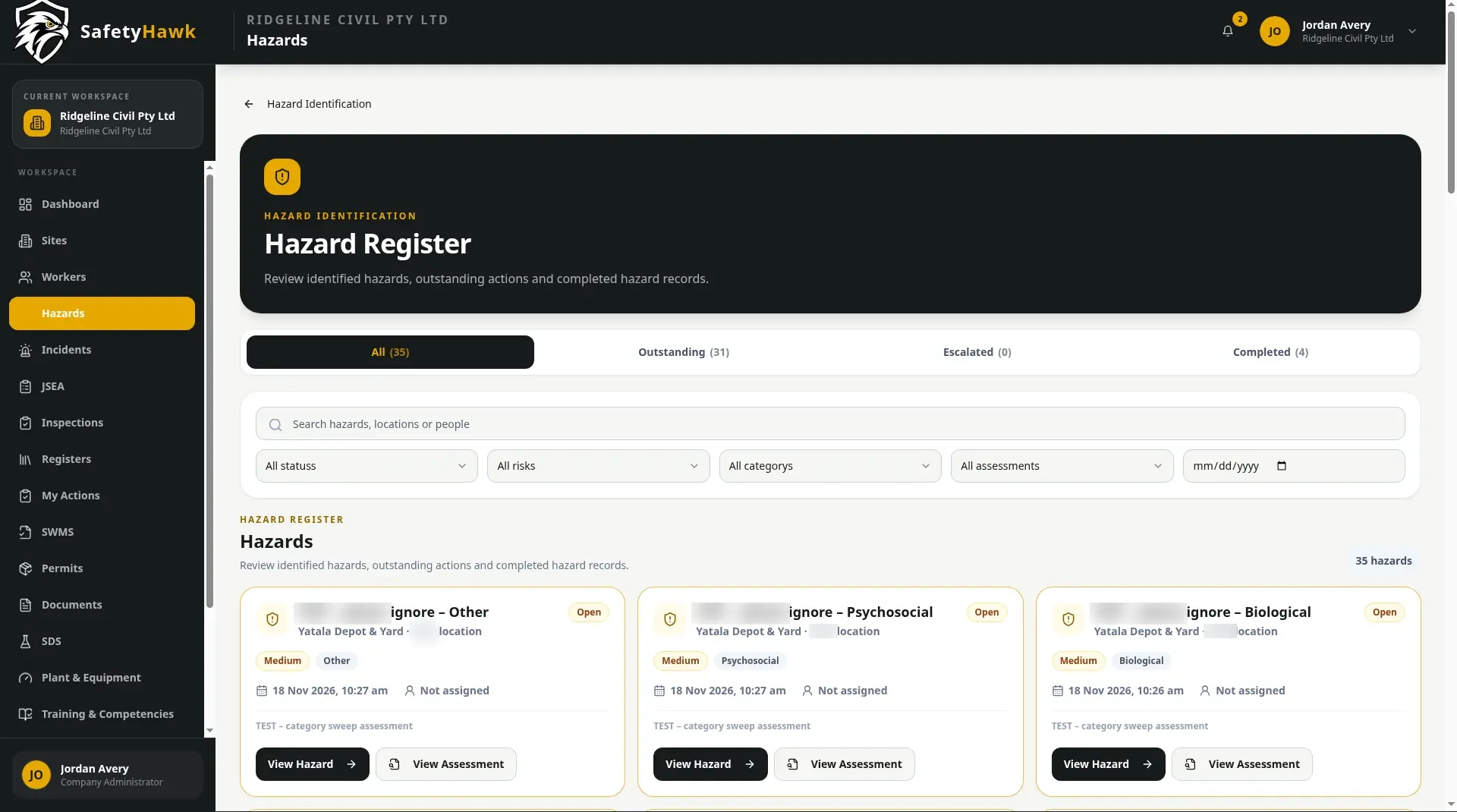
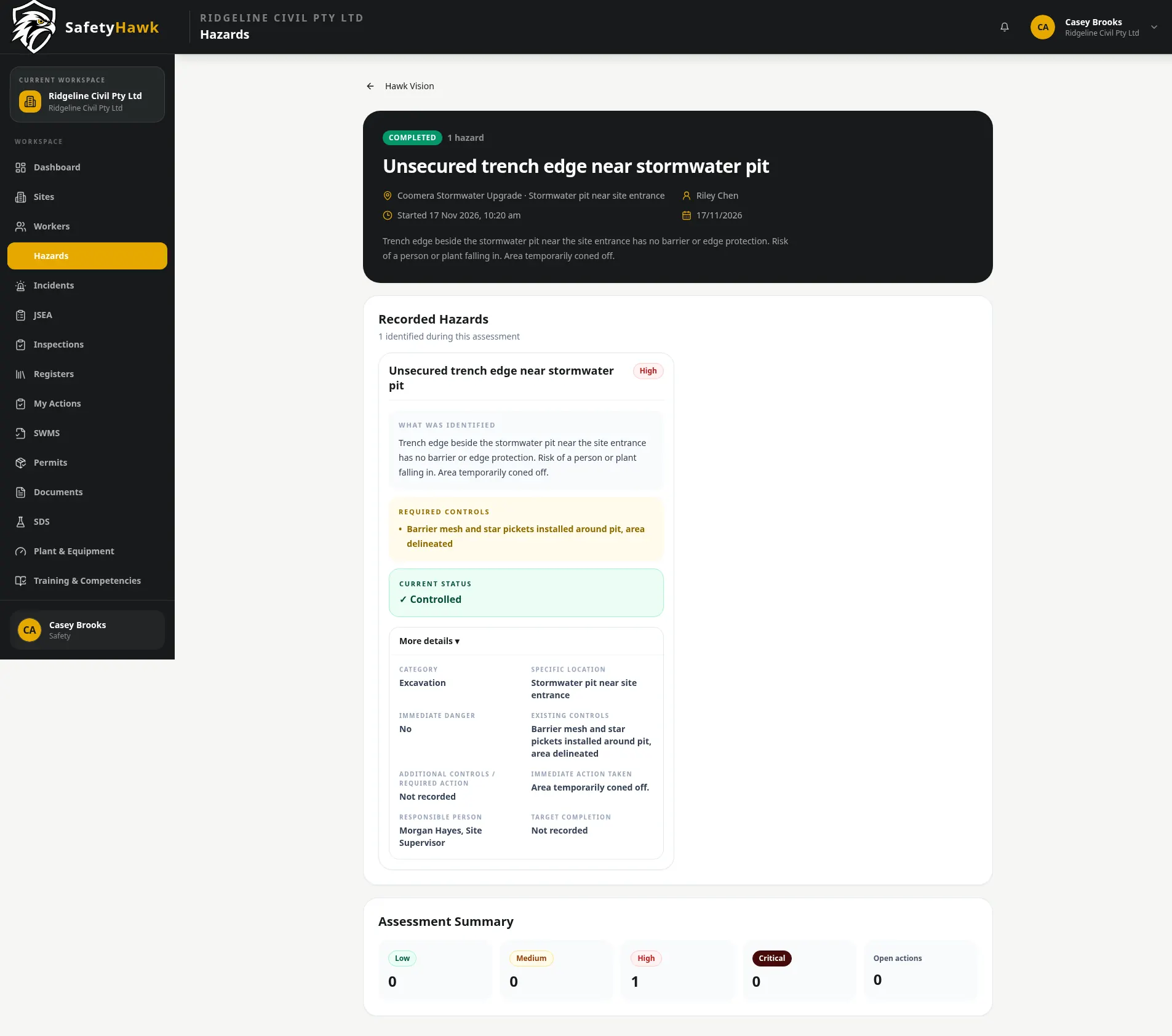
Make it easier for workers to report hazards as they find them. Safety personnel can assess the risk, record controls and use the hazard register to review what is open, controlled or closed. Search and filters help teams follow up without losing track of the original report.
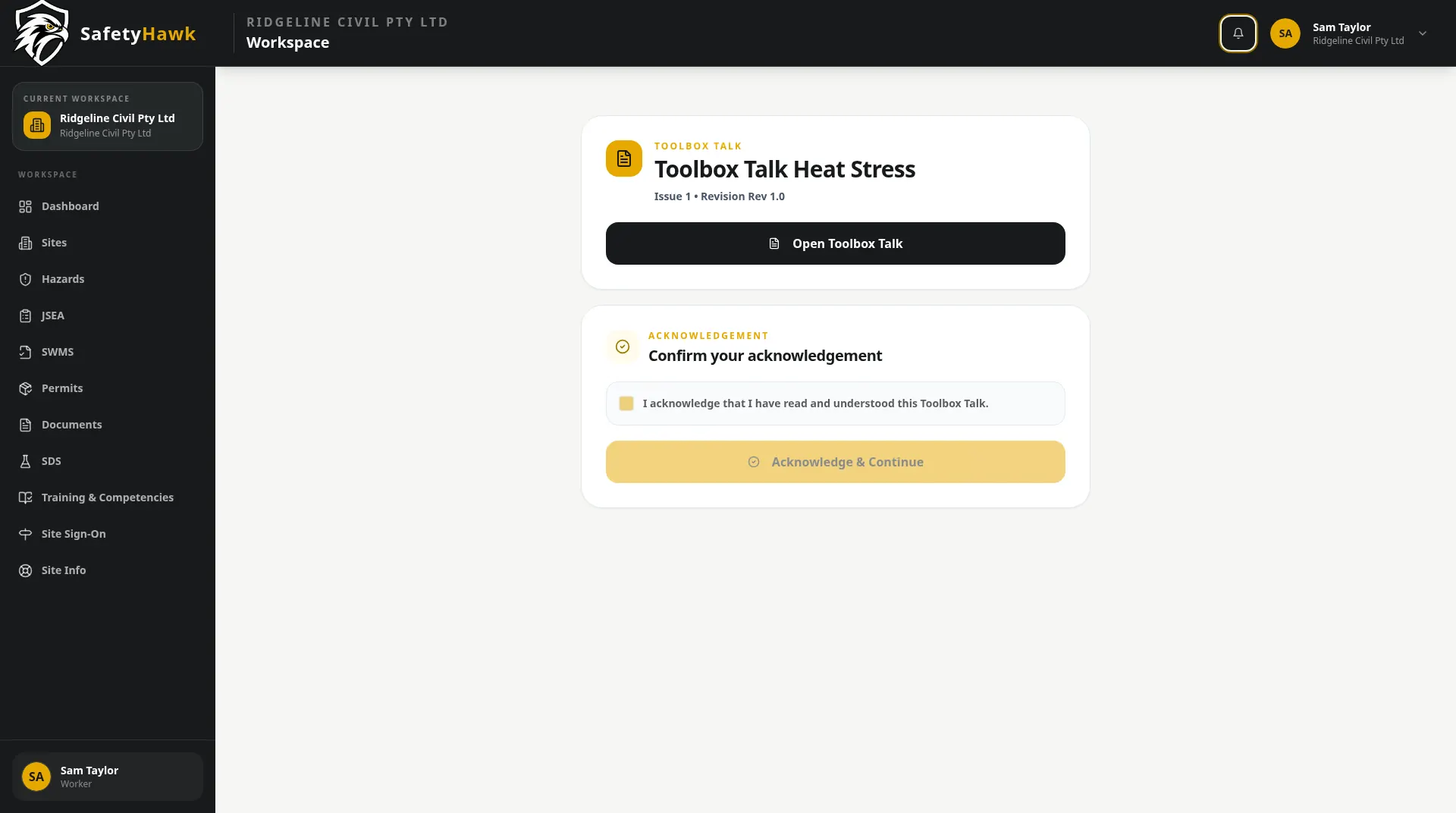
Share toolbox talks with the people who need to read them and record their acknowledgement. Notifications help bring the talk to the worker’s attention, while the record gives supervisors a clearer view of who has completed it.
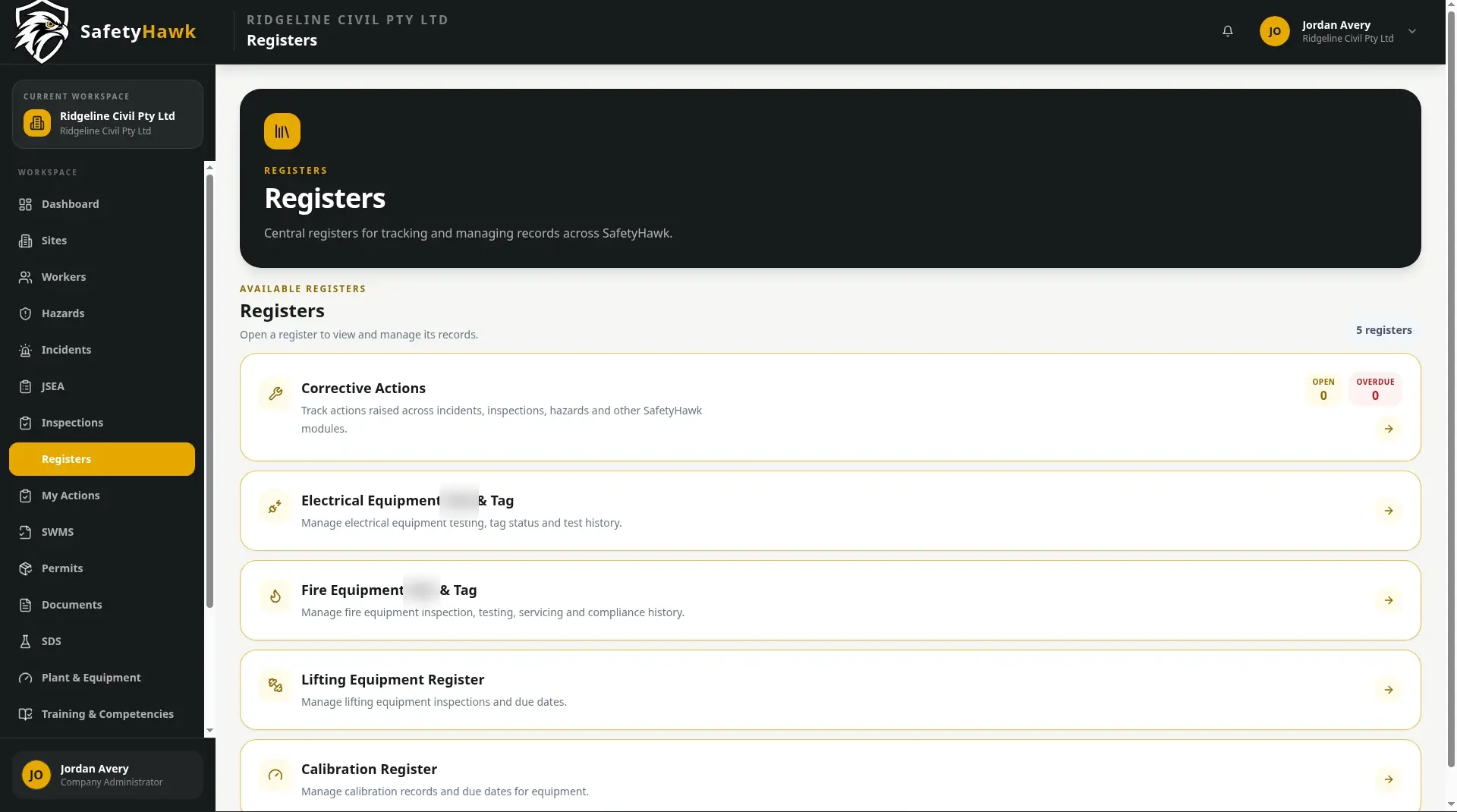
Keep important safety information organised in registers that can be reviewed and exported. This gives supervisors and safety teams a more practical way to check outstanding items and prepare records when they are needed.
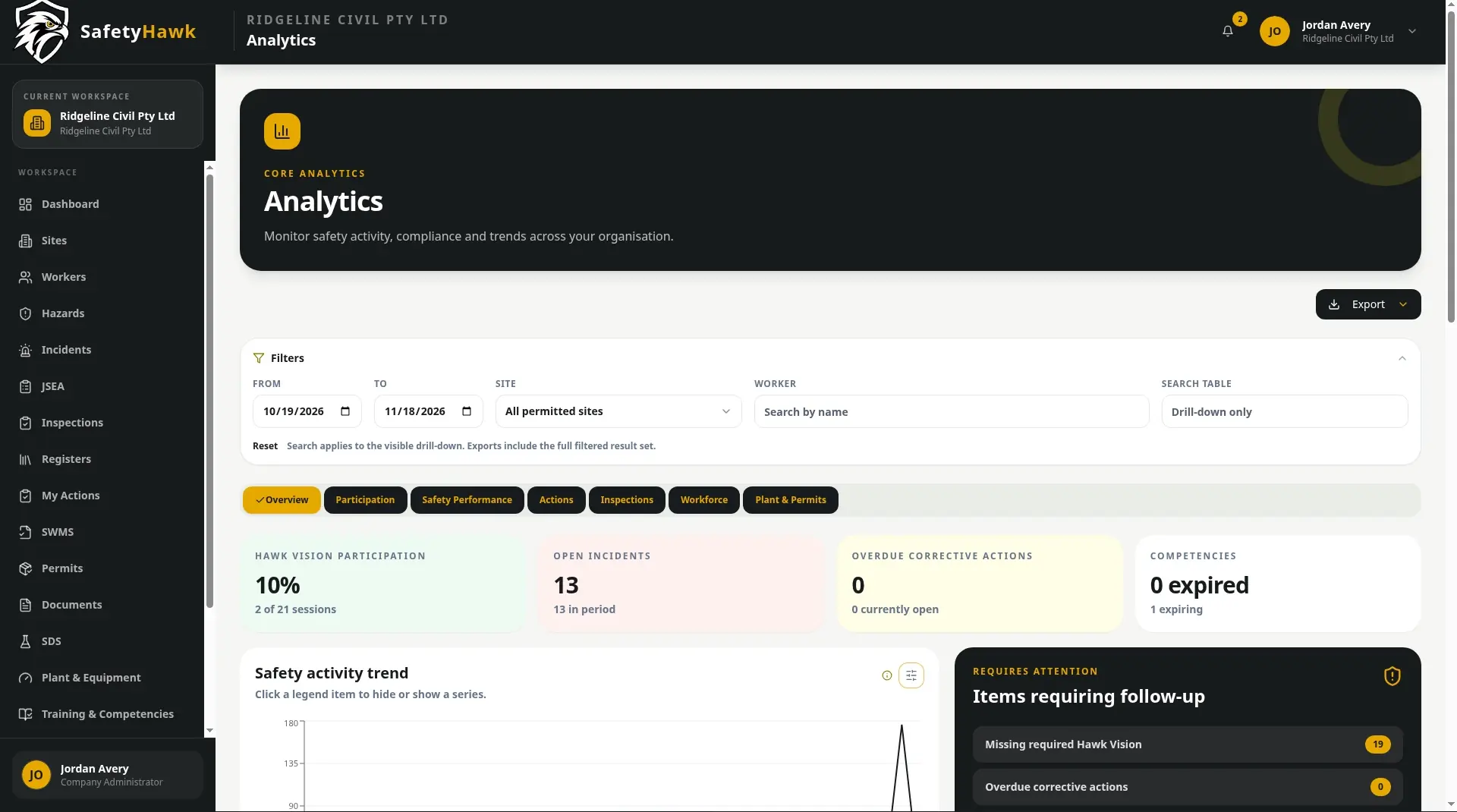
Use the analytics area to explore safety information recorded in SafetyHawk. Views and filters can help teams identify where to look more closely, while the underlying records remain available for review.
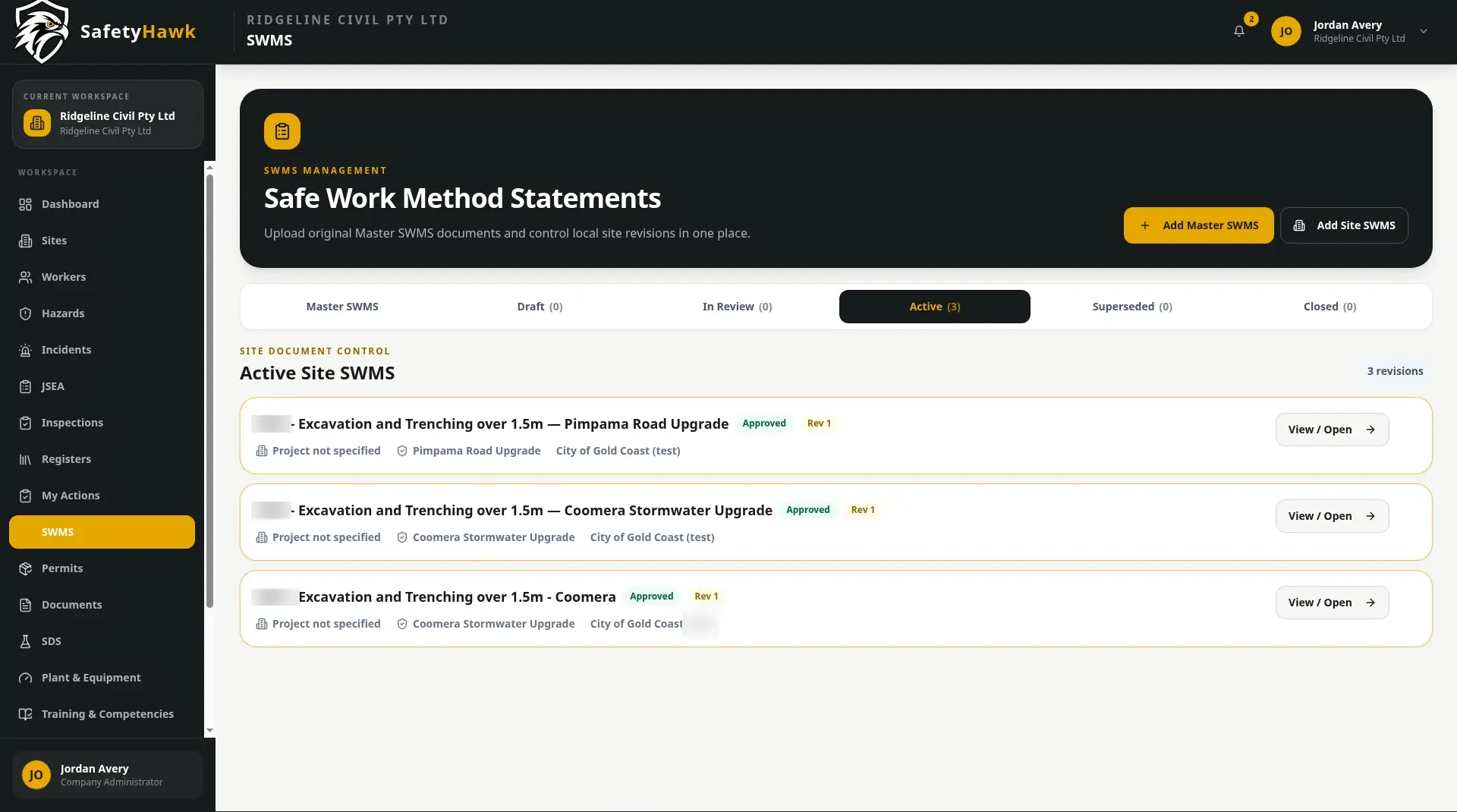
Bring SWMS into the system, review the extracted work steps and controls, and prepare a site-specific version for approval. Workers can then read and sign the approved SWMS, helping keep the document and acknowledgements together. AI-assisted extraction still requires human checking.
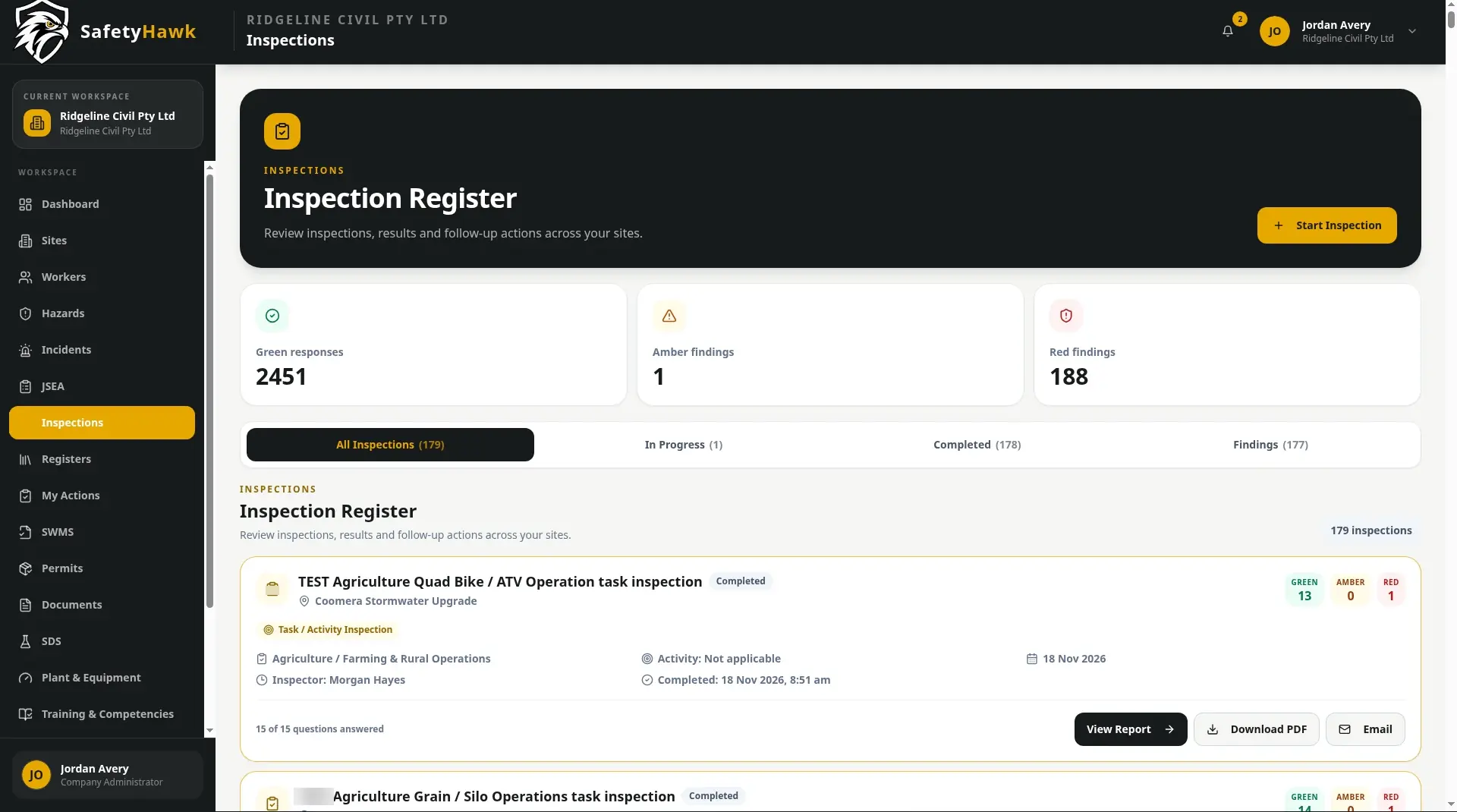
Complete site and task inspections using structured checklists rather than starting from scratch. Record findings, add notes and photographs where required, and generate a report that can be reviewed, downloaded or shared with the relevant people.
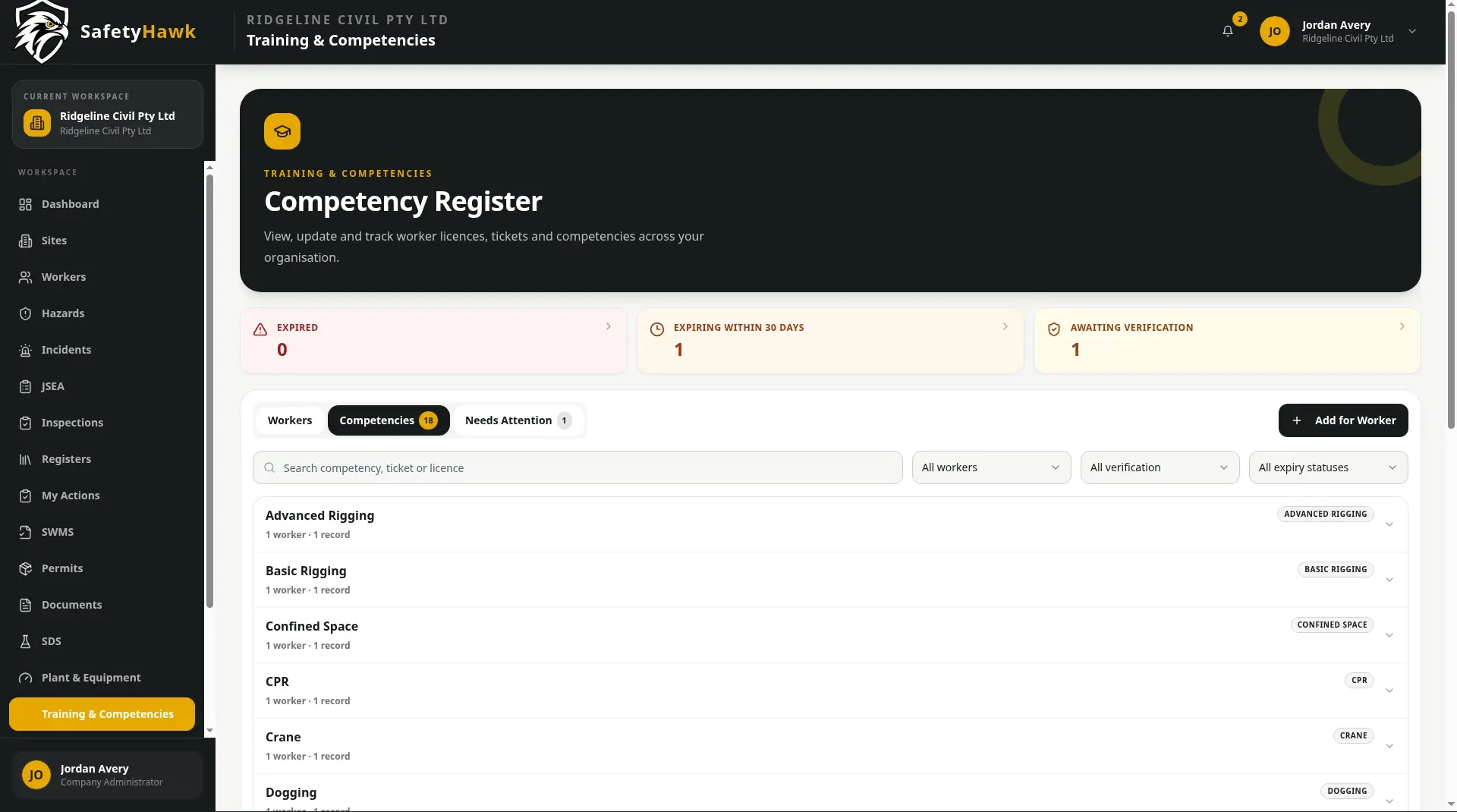
Give workers a place to upload licences and tickets while safety personnel review and verify the records. Expiry indicators help the team see which competencies need attention before they become a problem for site access or planning.
Workers can request a safety data sheet when they cannot find the information they need. An administrator can add the document or link an existing SDS, then notify the worker when it is available to view or download.
